
Verify your Business Profile from the profile dashboard using whatever method Google offers you: postcard, phone, text, email, live video, or instant verification. Verification is free, and most reviews finish within a few business days. If your first attempt fails, click Get verified again or contact Google support for a manual look.
TL;DR:
- Verification methods depend on your business location, category, and existing online information, with options including postcard, phone, email, or live video.
- Live video verification requires a continuous recording showing proof of location, business signage, and management, with clear, unedited footage at least 30 seconds long.
- Most verification reviews complete within five business days, but postcards take longer, and codes expire after 30 days, requiring timely reordering if lost.
- Common issues causing failure include editing details during verification, routing calls through shared numbers, or creating multiple profiles for the same location.
- Verified profiles should be secured with proper ownership, minimal edits post-verification, and proper management to ensure ongoing visibility and performance.
Table of Contents
- Step-by-step: start verification from your Business Profile
- Verification methods explained: instant, postcard, phone, and email
- Live video verification: requirements and how to record a successful submission
- What to expect after you submit: checking status and timing
- Troubleshooting common verification failures and when to escalate
- Eligibility rules and common profile pitfalls that block verification
- After verification: quick checklist to secure and optimize your verified profile
- Verifying a service-area business or a listing with no storefront
- Common pitfalls we see from service businesses
- How Local Growth Direct can help with verification and ongoing GBP management
- Sources
- FAQ
Step-by-step: start verification from your Business Profile
Before you can verify anything, you need to find or claim your listing under the right account. If someone else already manages the profile, you will see a "claim this business" option instead of a verify button.
- Sign in to the Google Account you want tied to the business, then search for the business name on Google Search, Google Maps, or go directly to business.google.com/add.
- If the profile already exists but shows as unclaimed, select Own this business? or Claim this business, then follow the prompts to request management access.
- If no profile exists yet, create one through the "add your business" flow and fill in the name, category, address, and contact details exactly as they appear on your signage and paperwork.
- Once you have access, click Get verified and let Google present the method it has determined you're eligible for.
Owner-level verification matters because only a verified owner can add managers, respond to Google-driven profile changes, and recover the listing if access is ever lost. Adding someone as a manager gives them editing rights without handing over full ownership control, which is the safer setup for most service businesses with a bookkeeper or office manager updating hours and photos.
Verification methods explained: instant, postcard, phone, and email
Google decides which verification method you get; you cannot pick postcard over phone or request video instead of email. The option that appears depends on your business category, location, and how much public information already supports your listing.
- Instant verification usually appears if you've already verified the same business through Google Search Console for the matching website, skipping the waiting period entirely.
- Postcard verification mails a physical card with a code to your listed address. Codes expire after 30 days, and requesting a replacement invalidates the old one, so double-check your address before requesting a card.
- Phone or SMS verification sends a code to the number listed on the profile. This only works if you or a staff member directly answers that line; call centers and shared IVR systems will not receive the code correctly.
- Email verification sends a code to an address tied to your domain or Google Account. Make sure that inbox is actively monitored before you request it.
Whichever method shows up, resist the urge to edit your business name, address, or category while verification is pending. Google treats those edits as flags on an unverified profile, which can delay or reset the process.
Live video verification: requirements and how to record a successful submission
Video verification requires a single, continuous live recording, not a polished edit or a batch of separate clips. Google is checking for three specific things in that one take, so plan your path through the business before you hit record.
- Proof of location: start outside, capturing street signs, your building number, or other landmarks that match your listed address.
- Proof of business: pan to your permanent signage, exactly as it reads on your profile, not a temporary banner or a sign still in a box.
- Proof of management: walk into a staff-only area, open a back office, or show paperwork like a lease or invoice that ties you to daily operations.
Record live from a mobile device, keep the video at least 30 seconds long, and never upload a pre-recorded file since Google's system checks for live capture. Rejections usually come from cutting between clips, filming through a car window instead of walking up to the entrance, or skipping the staff-only proof entirely.
Pro Tip: Walk your actual daily route, from the parking lot to your desk, instead of staging a tour just for the camera.

What to expect after you submit: checking status and timing
Most verification reviews finish within five business days, though instant and some video verifications clear much faster. Check status from the same Get verified panel in your Business Profile dashboard, where a pending request shows a clear status label.
Postcards typically take several days to arrive by mail and expire 30 days after they're sent. If a card never shows up, request a new one rather than waiting indefinitely, since the old code becomes useless anyway once a new request goes out.
Troubleshooting common verification failures and when to escalate
A failed attempt is not a reason to spam the request button. Repeated postcard requests or edits to your name, address, or category while a code is in transit will invalidate it and restart your wait.
- Stop resubmitting the same video if it keeps getting rejected and instead re-record with clearer signage, a steadier walk-through, and visible staff-only proof.
- Gather supporting documents, a business license, a recent utility bill, and photos of signage or a branded vehicle, before you contact support.
- Use Google's official Contact support flow or post in the Business Profile Community to reach a Product Expert when you're genuinely stuck.
- If your profile gets suspended, do not create a second listing for the same location; that almost always makes recovery harder.
Pro Tip: Keep your supporting documents in one folder from day one so you're never scrambling when Google asks for proof.
Eligibility rules and common profile pitfalls that block verification
Google requires in-person contact with customers during your stated hours to approve a profile. Purely online businesses, lead-generation companies with no physical presence, and unstaffed virtual offices are not eligible and risk suspension if listed anyway.
The most common pitfalls are self-inflicted. A phone number that routes to a national call center instead of ringing at the local address raises flags during review. A business name that doesn't match your signage, or signage that isn't permanent, causes the same problem. Creating a second profile because the first one "isn't working" almost always backfires: Google expects one profile per real-world location, and duplicates get flagged for removal rather than approved as a fresh start.
After verification: quick checklist to secure and optimize your verified profile
Once you're verified, lock things down before you move on to marketing.
- Confirm the verification email and make sure the correct Google Account retains ownership.
- Add staff as managers instead of sharing your login, then finalize hours, services, and photos.
- Turn on posts, a booking link, and messaging, then check Insights regularly to see how the listing performs.
Go easy on edits to your name, address, or category after this point. Major changes to any of the three can trigger a fresh round of verification.
Verifying a service-area business or a listing with no storefront
Service-area businesses, think mobile HVAC techs, plumbers, or mobile detailers, follow the same core verification flow, but with one key setup step first: hide your address during profile creation and mark the business as a service-area business instead of a storefront. You still list a base address for Google's internal use, but it never displays publicly, and customers only see the cities or zip codes you serve.
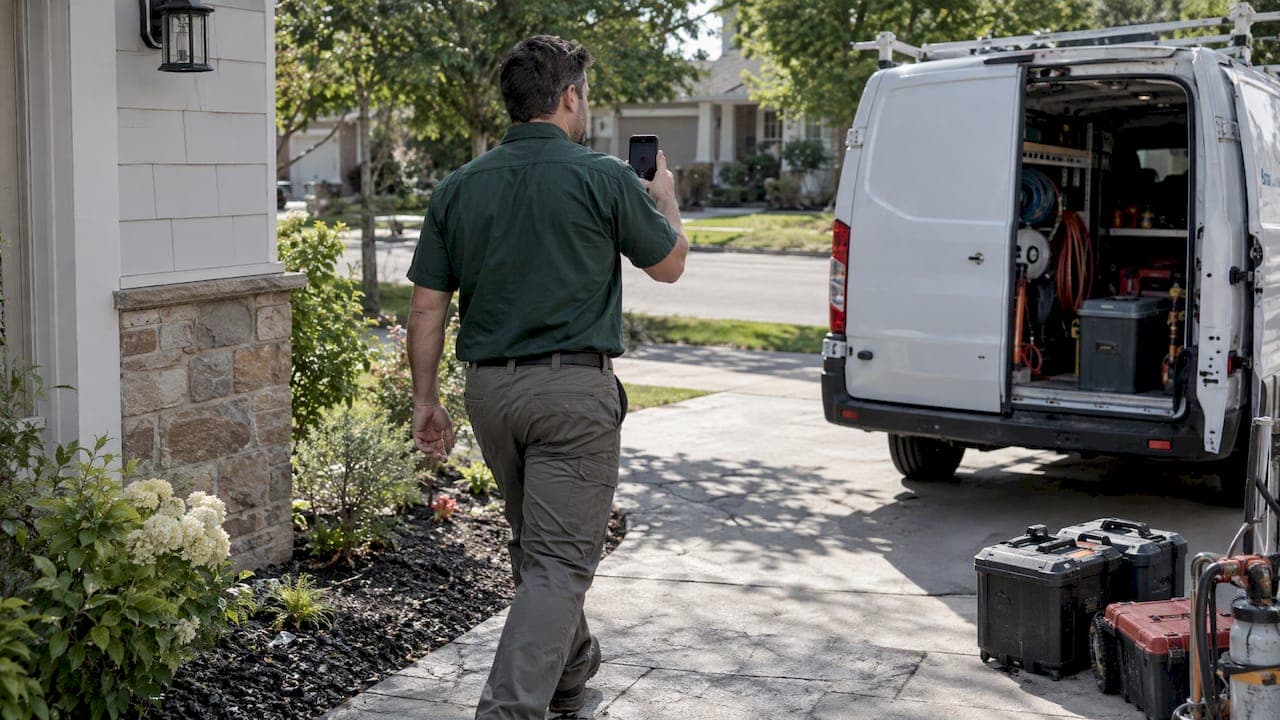
Because there's no public storefront to photograph, video verification for these businesses leans harder on proof of management: a branded vehicle, a home office with business paperwork, or inventory and equipment tied to the business. Postcard verification still works the same way, mailed to whatever base address you provided, as long as someone there can retrieve it. Phone verification tends to be the most common path offered to service-area businesses, since it doesn't depend on a physical sign Google can match against the listing.

The eligibility bar is the same one that trips up online-only shops: Google wants evidence of real operations, not just a listing. A business license, a vehicle wrap, and a phone number that actually rings through to you (not a shared call center) go a long way toward a smooth approval. Skipping the service-area designation and trying to list a home address as a public storefront is one of the fastest ways to get flagged for review or suspended later.
Common pitfalls we see from service businesses
Across local-SEO work with HVAC companies, auto shops, and clinics, the same mistakes repeat: editing a listing mid-postcard-wait, filming thin video evidence with no staff-only proof, and routing verification calls through a shared call center number. Visible signage, a local number, and paperwork on hand before you start fix most of it.
— John
How Local Growth Direct can help with verification and ongoing GBP management
Getting through verification is only the starting line. Local Growth Direct works with HVAC, home service, automotive, and health and wellness businesses to prepare acceptance-grade video submissions, fix the signage and phone-number issues that trigger rejections, and manage the profile once it's live.

Here's what that support typically includes:
- Help preparing and reviewing video verification footage before submission.
- Full Google Business Profile optimization, from categories to photos to services.
- Ongoing review monitoring, response strategy, and Google Maps visibility tracking.
If you'd rather hand the back-and-forth to someone who does it daily, start with our Google Business Profile management services and have your business license, signage photos, and login access ready when you reach out.
FAQ
How do I verify my Google Business Profile?
Open your Business Profile dashboard, click Get verified, and complete whichever method Google offers, postcard, phone, email, video, or instant. Verification is free and most reviews complete within five business days.
Why does Google keep making me verify my business?
Google re-triggers verification when a listing's ownership is unclear, when a major edit like a name or address change raises a flag, or when a previous attempt expired or failed. Postcard codes expire after 30 days, so a stalled request often just needs a fresh one.
How much does it cost to verify your business on Google?
Verification is free. Google does not charge for adding, claiming, or verifying a Business Profile through any method it offers.
Why won't Google let me verify my business?
The most common cause is eligibility: Google requires in-person contact with customers during posted hours, so online-only or unstaffed virtual office listings get blocked. Mismatched signage, a non-local phone number, or a duplicate profile for the same location can also stop verification until it's corrected.